
The VR hub is our room for VR headsets. You stand in a bright room, the clips play on a big screen in front of you, and everything you can do on the site — browse, buy, watch, tip, chat, watch together — works without taking the headset off. This guide shows you the room, step by step.
Short on time? The picture version is on The VR hub — how it works. Creators: How to record in VR. What a VR clip is and how to watch one on a phone: Watching VR videos.
1. Opening the hub
- Put the headset on, open its browser and sign in to the site once. Go to /vrfeed — or press Watch in VR on any clip or live page.
- Press Enter VR. The first time, the browser asks whether the page may use VR — say yes.
- Works on Meta Quest 2, 3 and Pro. PC-VR headsets (for example the Steam Frame) open the hub in Chrome on the PC while SteamVR is running. On a phone or computer the page shows a 360° preview instead.
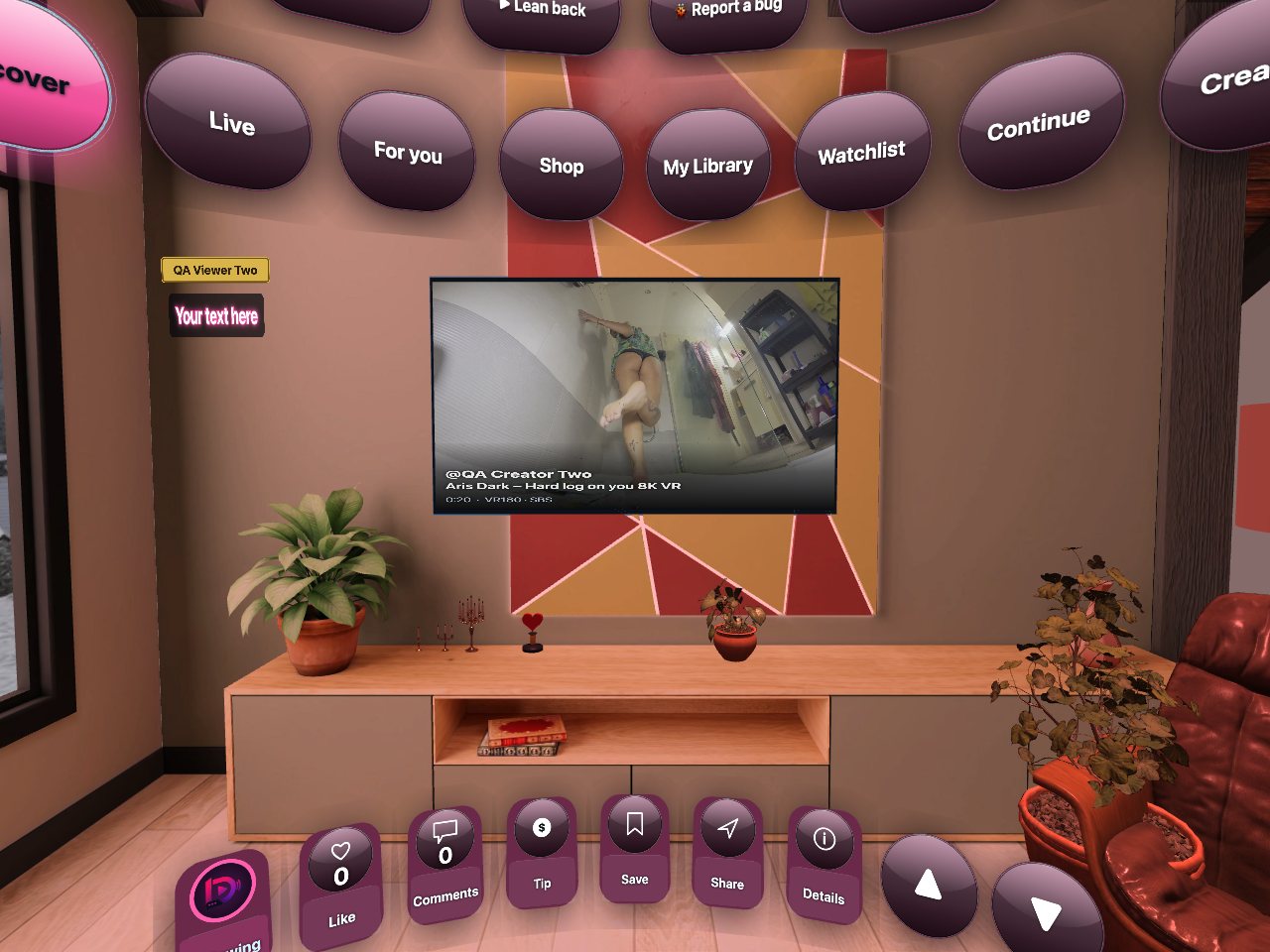
2. Pointing and pressing
- Point with a controller — a thin ray shows what you are aiming at. Trigger presses it.
- Thumbstick up or down: next or previous clip. B or Y: close whatever is open.
- No controllers? Hands work too: thumbs up = Like, pinch and hold = Tip, wave = next clip, open hand in front of your face = Pause.
3. The tabs above the screen
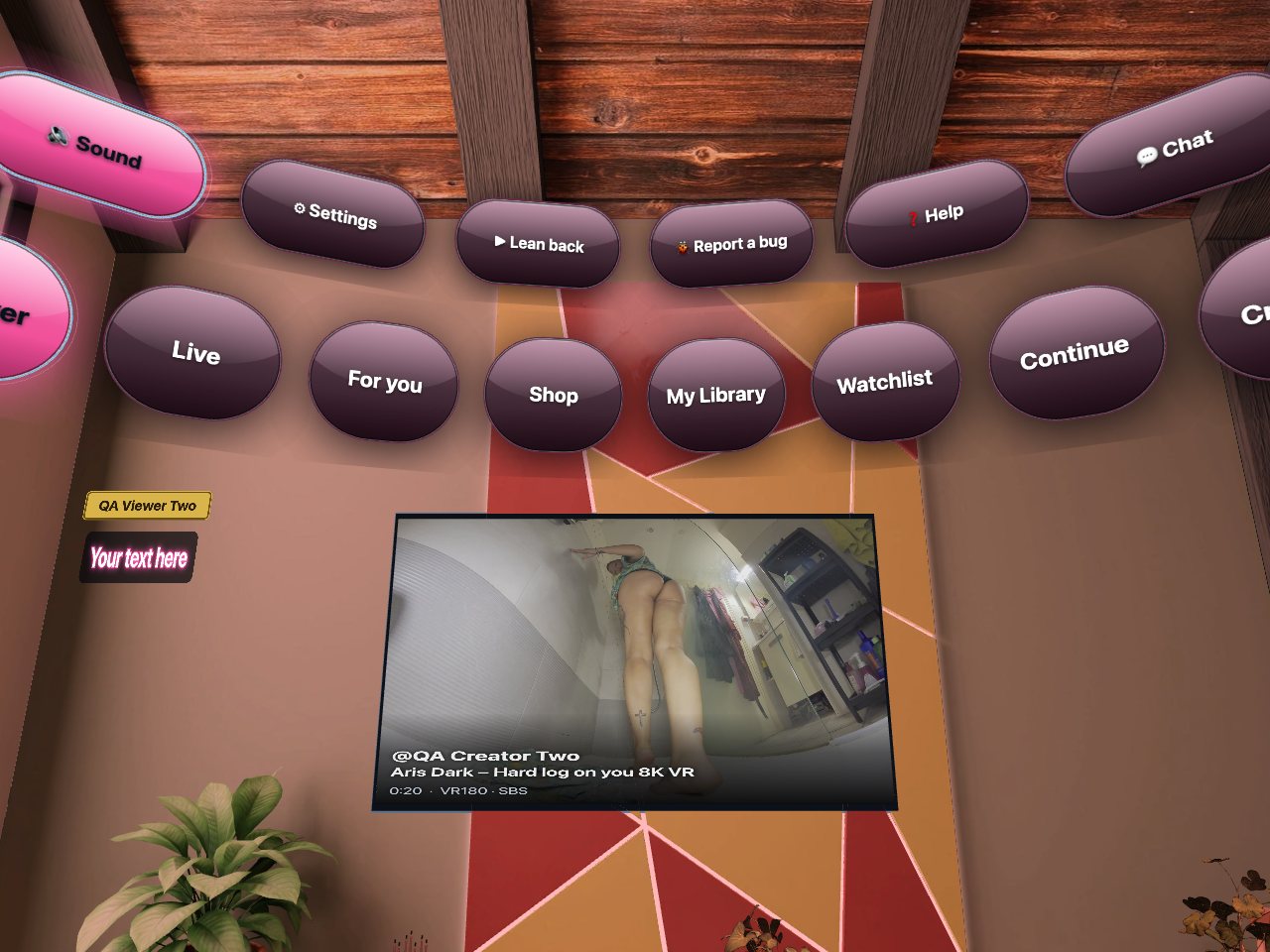
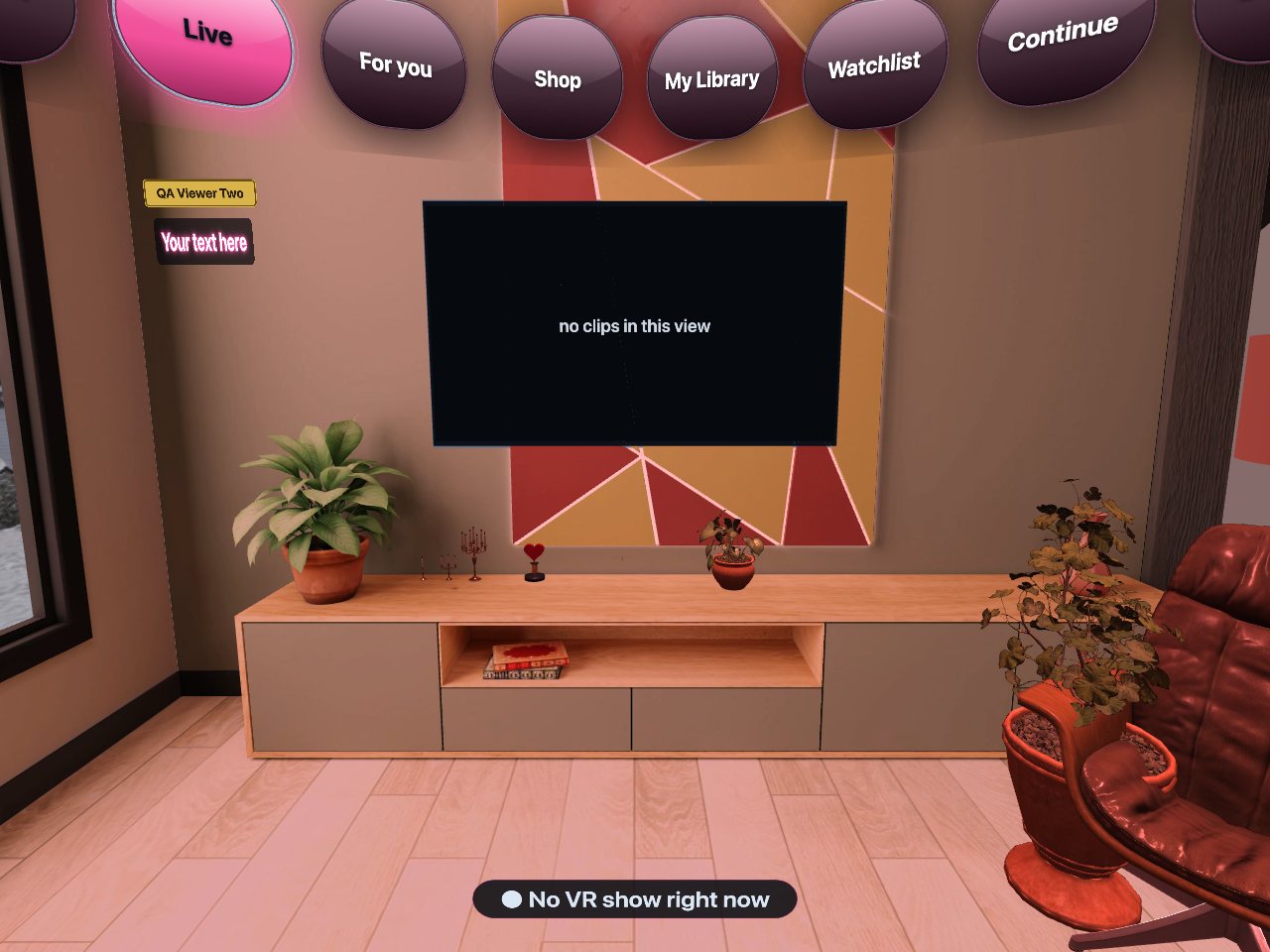
- Discover — free trailers, one after another. Live — who is streaming right now. For you — picked from the creators you follow.
- Shop — clips to buy. My Library — the full clips you own. Watchlist — saved for later. Continue — clips you have not finished. Creators — one page per creator.
- The chips above the tabs: Language, Sound, Settings, Lean back, Help (this guide, inside the headset), Chat and Report a bug.
4. The action bar under the screen
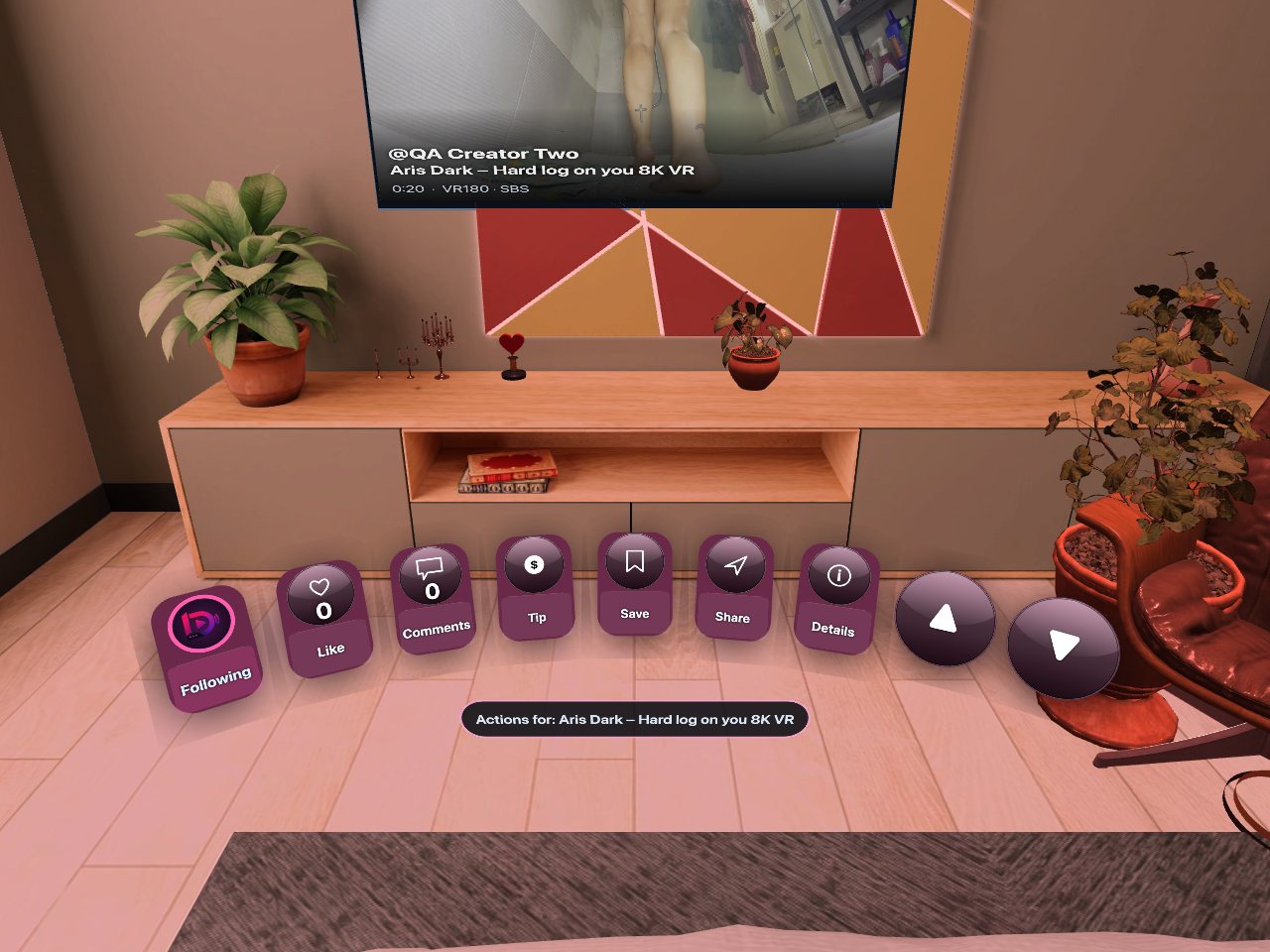
Follow, Like, Comments, Tip, Save, Share and Details do the same as on the site. The arrows at the right end move to the next or previous clip. In the Shop and your library the bar also has Search and Buy or Watch.
5. Watching: the dome
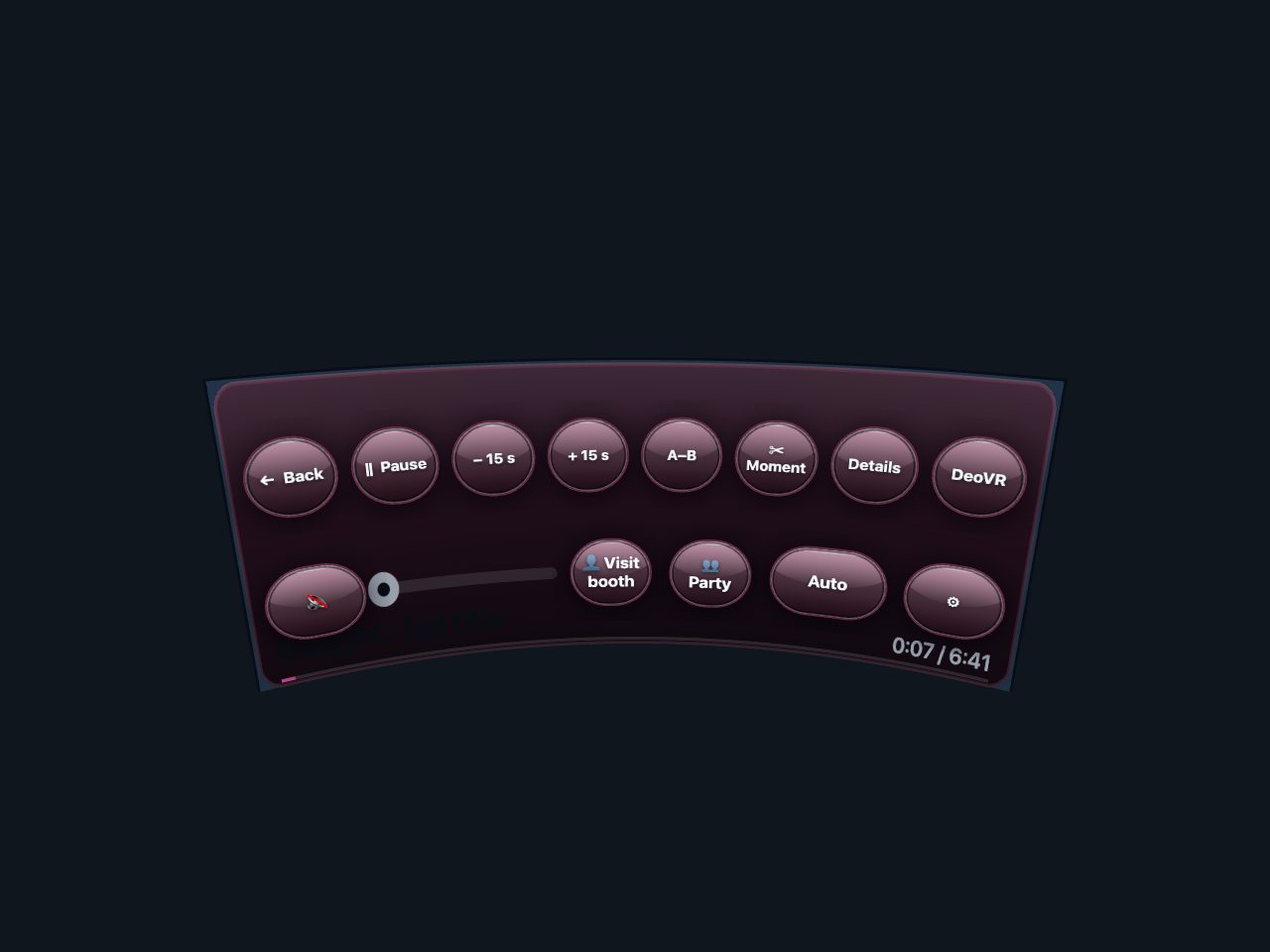
- Press Watch (or aim at the screen and pull the trigger) and the picture wraps around you. Turn your head and the scene turns with you.
- The bar: Back, Pause, −15 s / +15 s, A–B (repeat a part), ✂ Moment, Details, sound, the timeline, Toy, Party, quality and settings.
- Hiding the bar: aim at nothing and pull the trigger — the bar disappears and you just watch. It also fades by itself after a few seconds. Pull the trigger again (aiming at nothing) to bring it back. Moving the controller does not bring it back.
- Quality starts on Auto and climbs once to the best your connection carries. Want 8K from the first second? Pick it in the quality button.
- Where you stopped is remembered. Open the clip again and it continues there; the Continue tab lists all such clips.
6. Buying and your wallet
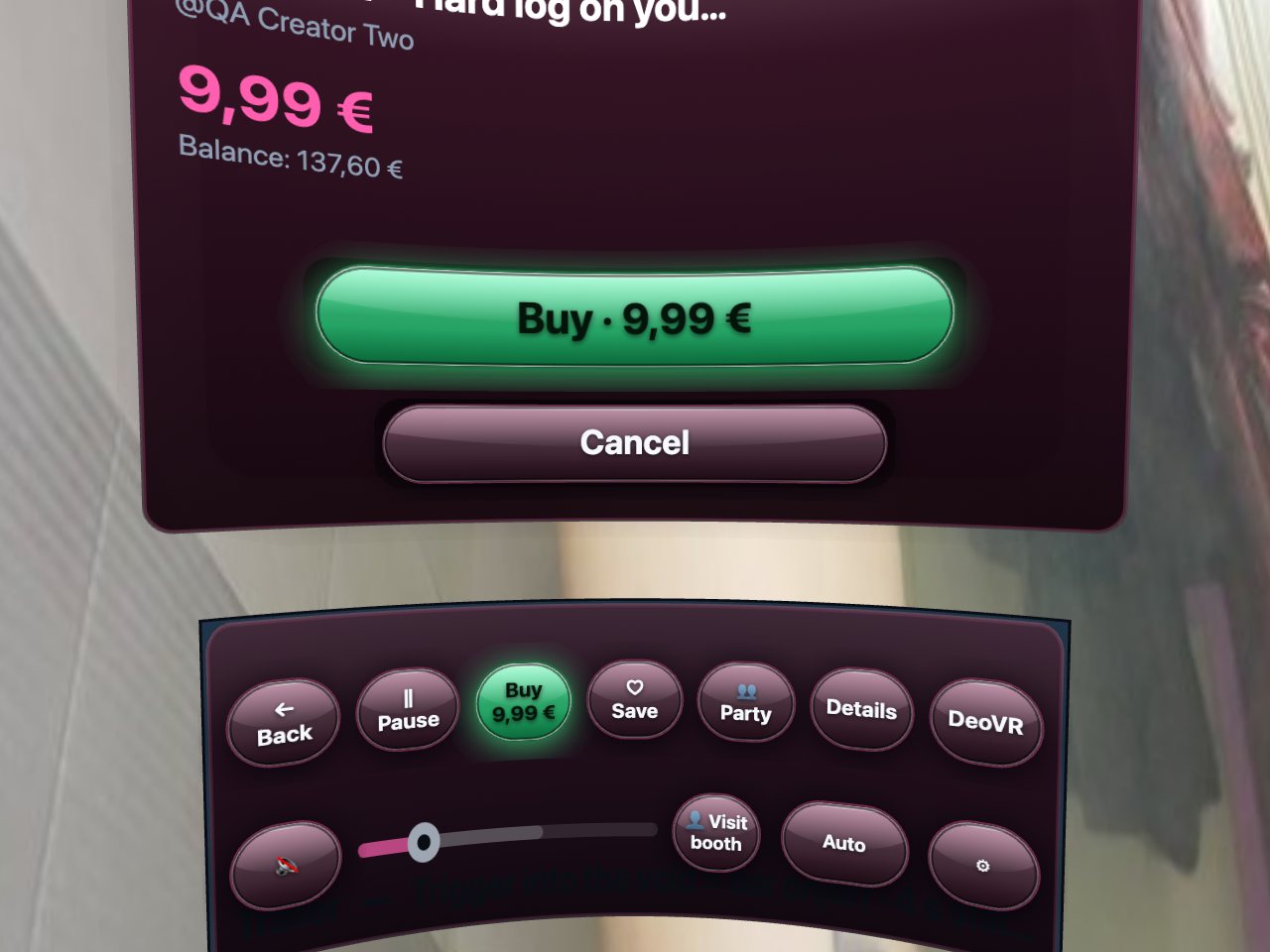
Everything in the hub is paid from your wallet balance, so a purchase is one press. If the balance is too low, the hub shows a short 6-digit code: open /pay on your phone, type the code, and top up there — the headset waits and continues by itself. No account yet? You can still buy: press Buy on your phone, and the code takes you to a quick checkout.
7. Watch together: party and premieres
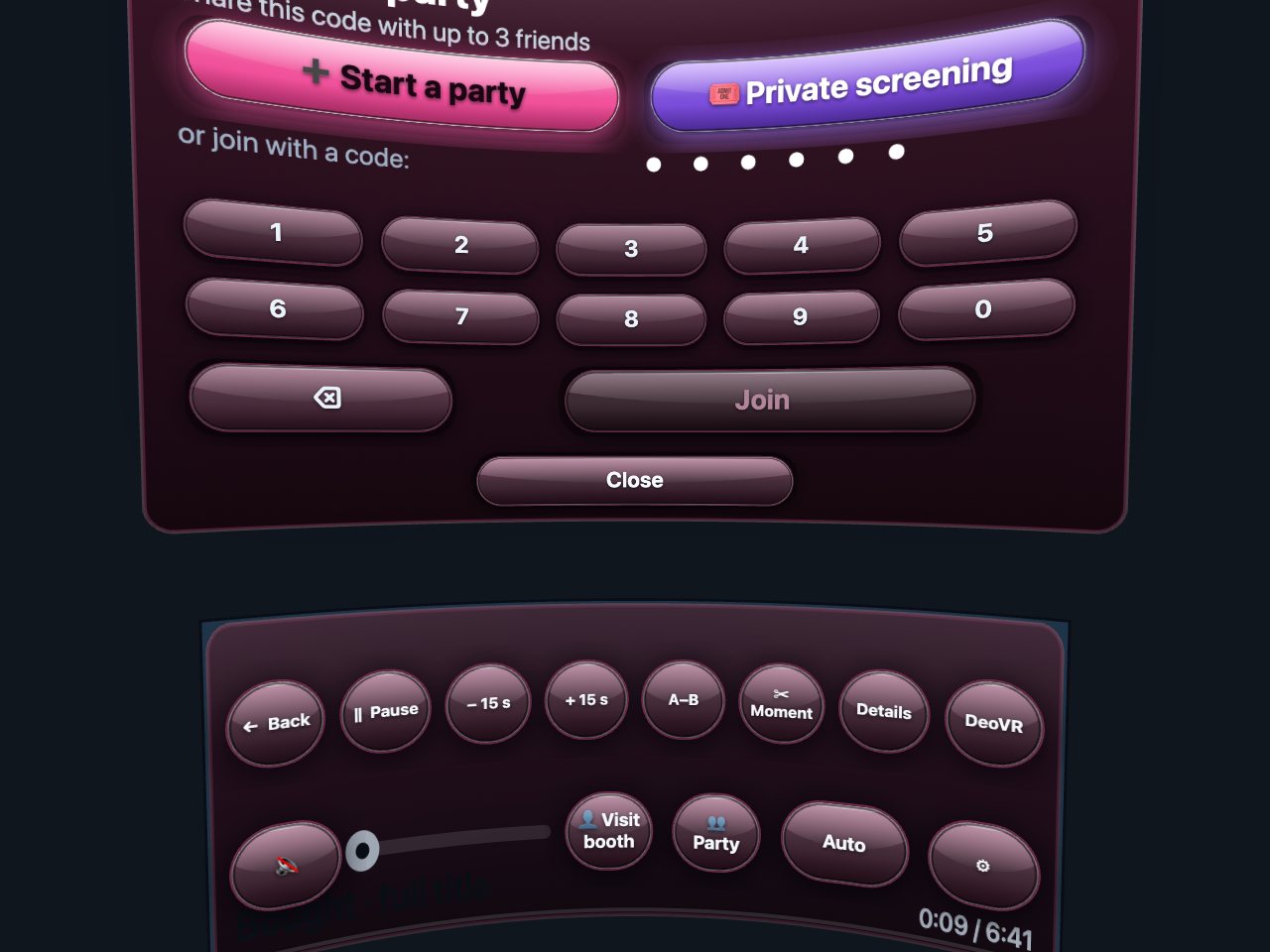
- Party in the dome bar: Start a party gives you a code, up to three friends join with it. Everyone sees the same clip, hears each other and can write in a small chat. Private screening rents a room for up to 12 guests with a ticket price.
- Premieres: some clips are sold before their premiere. The card counts down, and at the premiere the dome opens by itself for everyone who owns the clip. When the creator opens the premiere room, press 🎤 Premiere to hear them live.
- ✂ Moment: cuts ten seconds from the clip into a short piece with its own link, which you can send to your e-mail. Creators decide whether moments are allowed.
8. Your room: wall, badges, decoration
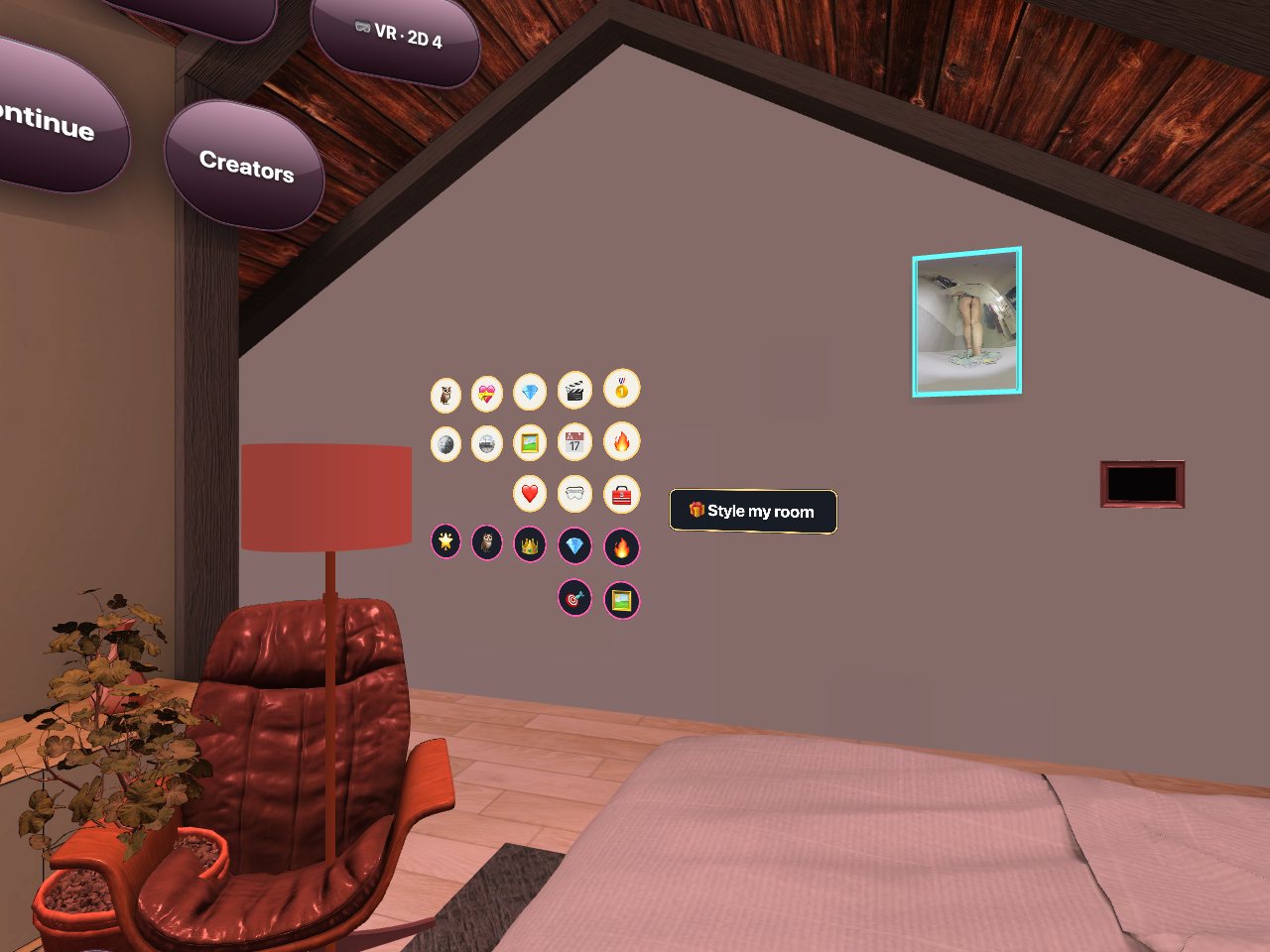
- Your wall: open a creator’s page and press Pin — their poster hangs on your wall (up to three). Aim at a poster to jump to that creator.
- Badges are stickers you earn by using the hub — first purchase, five clips, a subscription, a tip, watching several days in a row and more. Aim at a badge to see what it stands for. Some come with a small credit to your wallet.
- Style my room (the sign on the wall, or Settings → Me) sells decoration for tokens: poster frames, room lights, stickers, a name plate, a neon sign with your text, furniture and props — and in the attic room nine window views, real 360° photos behind the glass. One view is free; the others cost 60 tokens each. Everything you buy stays yours; Try on shows any piece for 15 seconds, free.
- Top fans wall: above a creator’s poster hangs a board with six places. Buy a place and your name is shown to every visitor for 30 days. Trophies are never bought — you earn them (for example by owning a whole series) and place them on a shelf.
9. Live shows in the hub
Open a show in the Live tab and it fills the dome. The bar has the live chat, 💬 Chat to write, ★ Tip with effects like confetti and fireworks, and a Search button to filter the shows. Ticket shows, premium rooms and private shows work with one press, paid from your wallet. In an exclusive private show you can talk to the creator with 🎤 Talk — the first time, the browser asks for your microphone. Normal 2D shows play on a flat screen in front of you.
10. Chat
Press the 💬 Chat chip to see your conversations; on a creator’s page, Message opens the chat with that creator. Type with the keyboard in front of you and press Send — it is the same chat as on the website. Long messages show ⤢ Read; press it for the full text. Pictures and clips a creator sends open right in the hub; paid attachments are unlocked with one press.
11. Voice control
Hold A or X on a controller, say a command, let go. A small plaque shows what was heard. The hub understands the language it is set to, and English words work everywhere. The first time, press A or X and allow the microphone. All commands are listed in Voice control in the VR hub — for example “pause”, “next clip”, “8K”, “louder”, “search for …”, “open the chat”, “style my room”, “feature request”, “top fans”, “environment”, “window snow”.
12. Settings
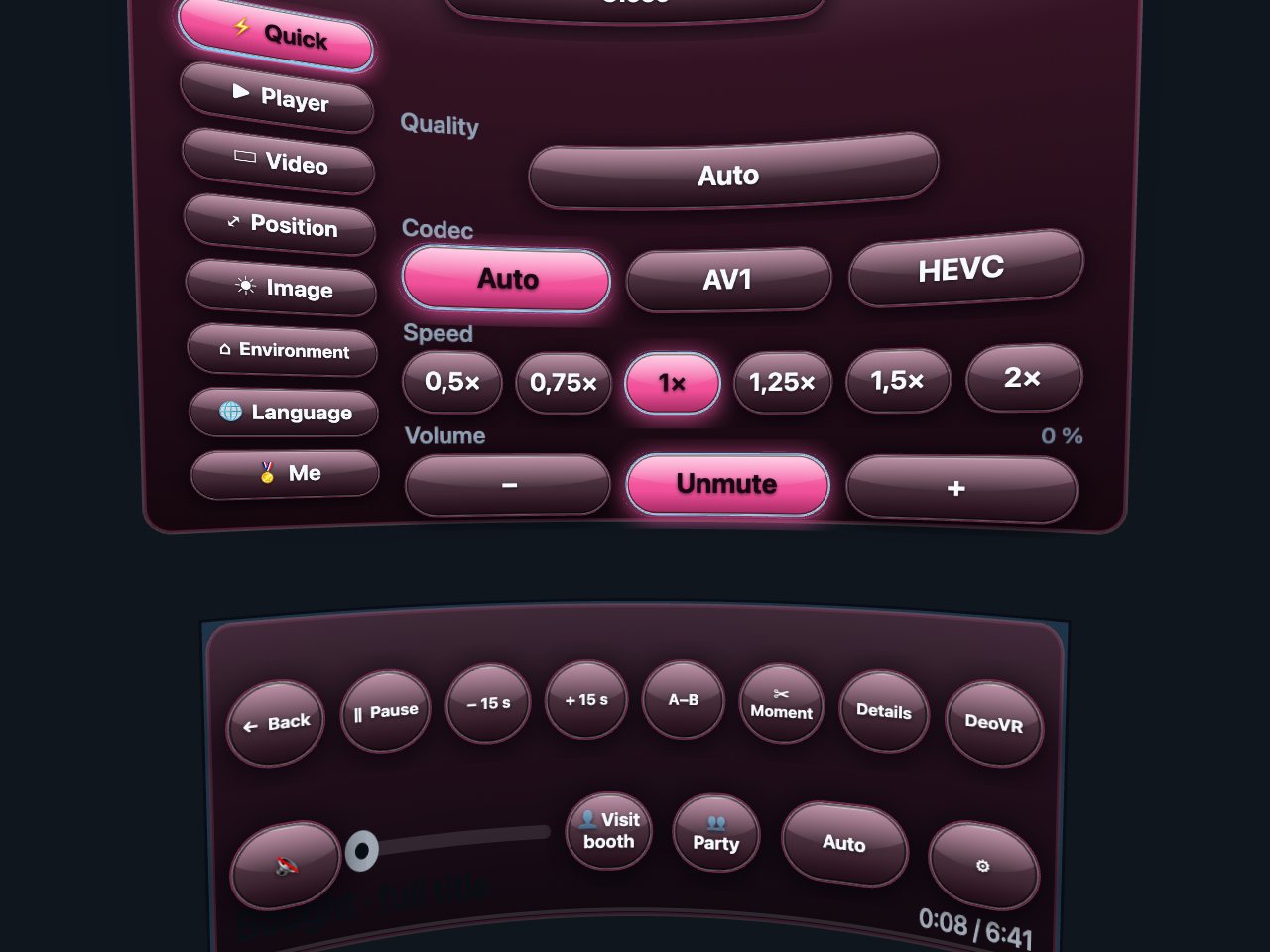
Quick — quality, speed, volume. Player — resume where you stopped, pause when you take the headset off, the jump step, loop, vibration, recenter. Video — picture shape for a clip that looks doubled or squashed. Position and Image — move or dim the picture. Environment — room on or off, room sound, menu distance. Language — eight languages. Me — your badges and Feature request: tell us what would make the hub better.
13. Signing in, and if something is off
- Not signed in? The top row shows 🔑 Sign in: it gives you a code for your phone — sign in there, enter the code, and the headset signs you in by itself. You can also type your login on the keyboard in the room, or create an account right there. Details: Signing in and creating an account in VR.
- Found a bug? Press Report a bug above the tabs, type what happened and press Send. The hub adds the clip and headset details by itself.
- The picture looks doubled or squashed: Settings → Video, pick the shape that matches the clip. The picture is soft: give it ten seconds, use 5 GHz Wi-Fi, or pick a fixed quality. The bar is gone: aim at nothing and pull the trigger. Dropped out of VR: press Enter VR again — your place in the clip is kept.